





Canvases
Contents
A canvas is an interactive app that an agent builds around your PostHog data. A canvas can be disposable (one time use) or durable (something you come back to). Use one when a question or a workflow needs more than a static dashboard.
You describe the outcome. The agent writes the interface and the queries, then publishes the canvas to a space. The canvas runs inside PostHog against live project data, so your team opens the same working app instead of a screenshot or an export.
Canvases can combine saved insights with new queries, add filters and date controls, remember shared state, capture events, and offer approved actions.
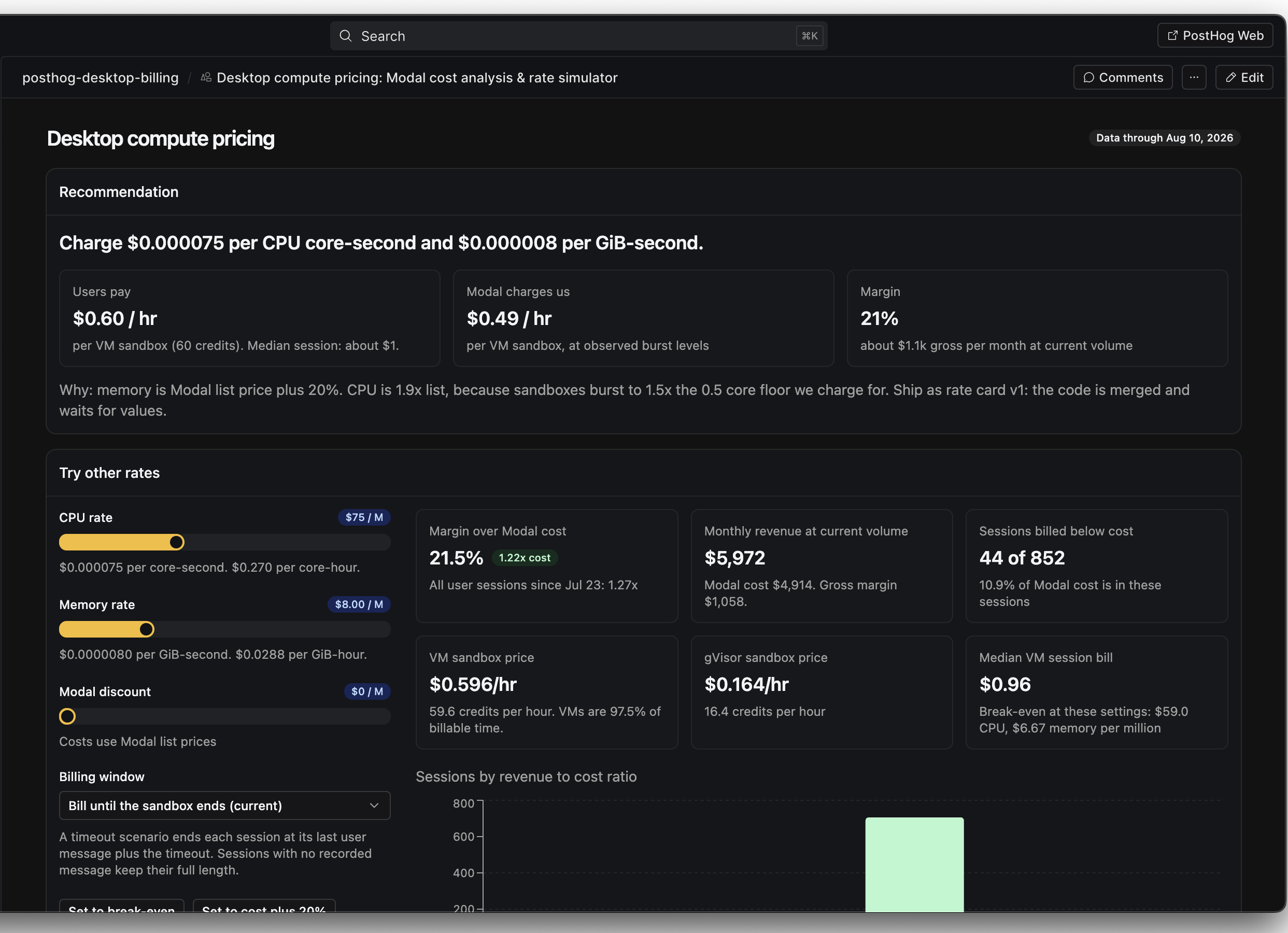
When to use a canvas
Dashboards and notebooks in PostHog Web still do their jobs, and the PostHog MCP is still the fastest way to pull data into an agent chat. A canvas is for when the view needs its own layout, controls, or workflow, when the answer is easier to see than to read, or when a team needs to act on it together.
Ask the agent for a canvas when you want to do things like:
- Build a doc, deck, or checklist that pulls in live data
- Add filters, controls, or logic an insight can't express
- Combine context from multiple tools and external sources into one view
- Pair data with an action, like letting an owner mark a problem as reviewed
Limitations
A canvas is a sandboxed browser app, not a hosted service. These limits apply to every canvas.
| Limit | What it means |
|---|---|
| Sandboxed page | The canvas runs in a sandbox inside PostHog. It reaches an external address only when it declares that address first, and the edit preview blocks all direct requests. |
| No backend | The canvas has no server of its own. Its saved state lives in PostHog. It can send requests only to addresses it declares, and it cannot authenticate viewers itself. |
| Project data only | The canvas reads the PostHog project selected in Desktop. To use data from another system, connect that system as a data warehouse source in PostHog, or as an MCP server in Desktop settings. |
| One app per canvas | A canvas is a single app with no separate pages or addresses. The agent uses sections in one view instead of many pages. |
Build a canvas
Open a space in PostHog Desktop, start a new session, then describe what you need. You can also ask for a canvas in any active agent session, or from a self-driving report.
A useful first prompt includes:
- The question or the workflow the canvas supports
- Who uses it
- The data or the saved insights it shows
- The filters and the controls people need
- Any action a viewer can take
What you can build
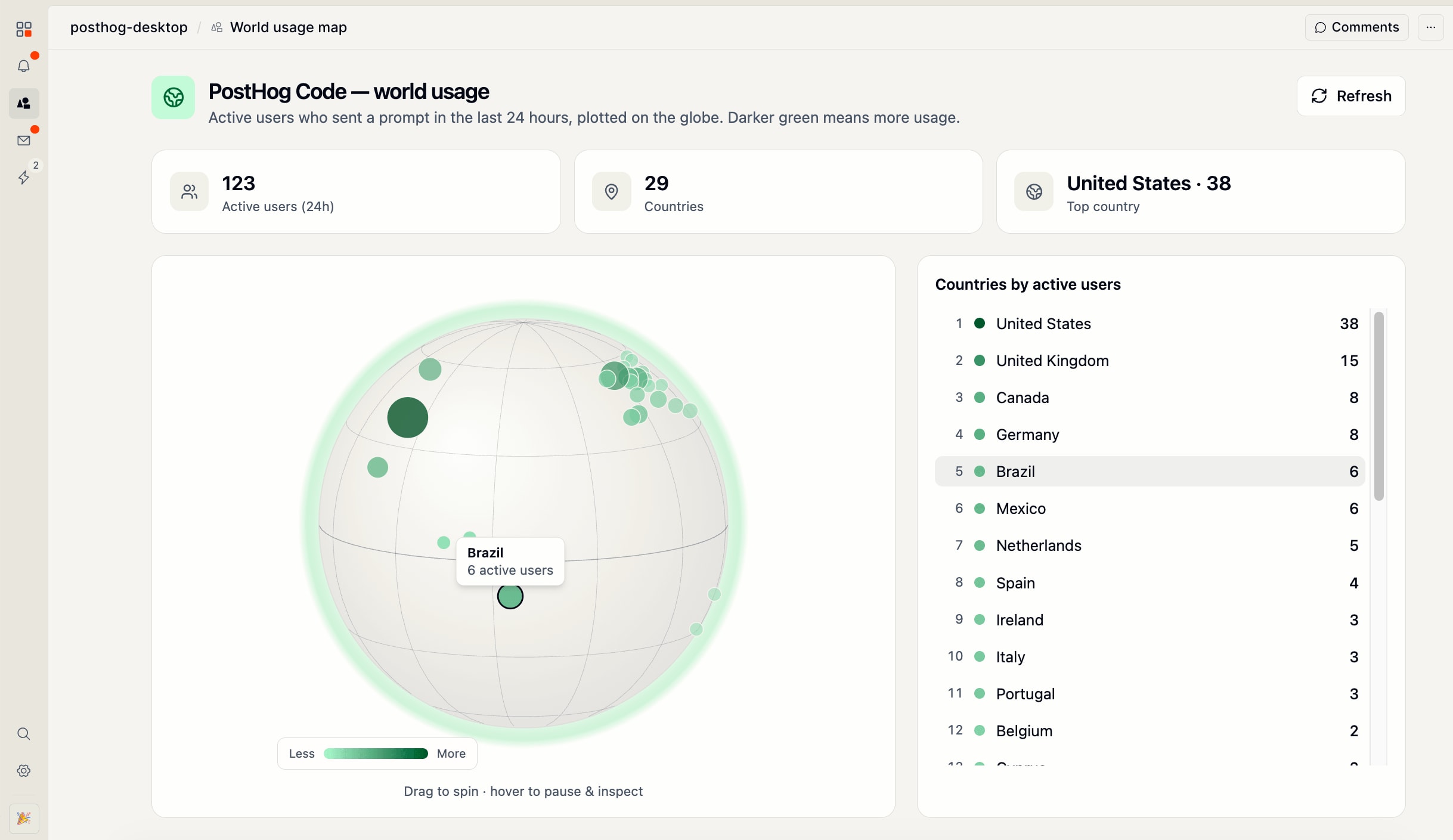
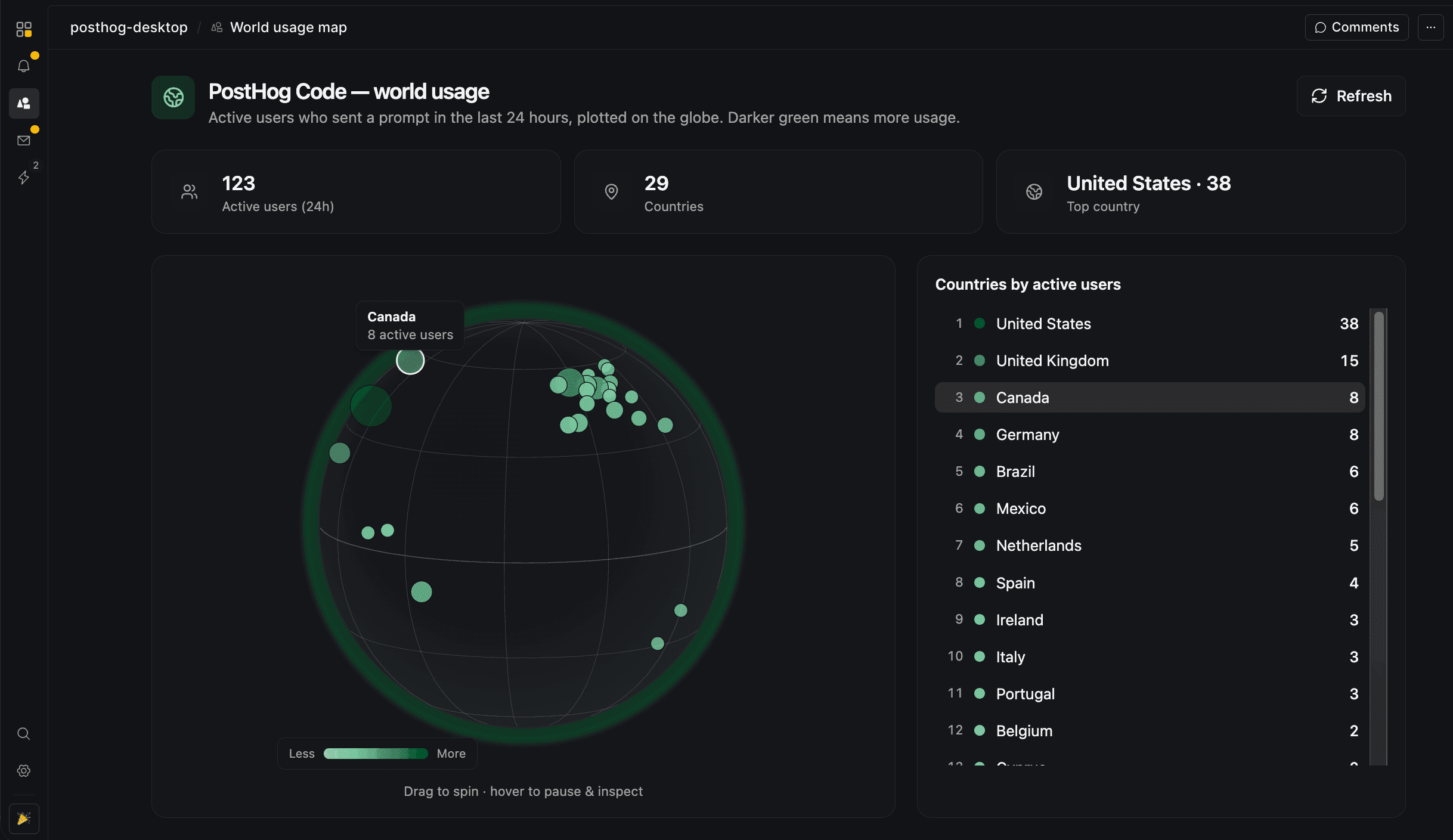
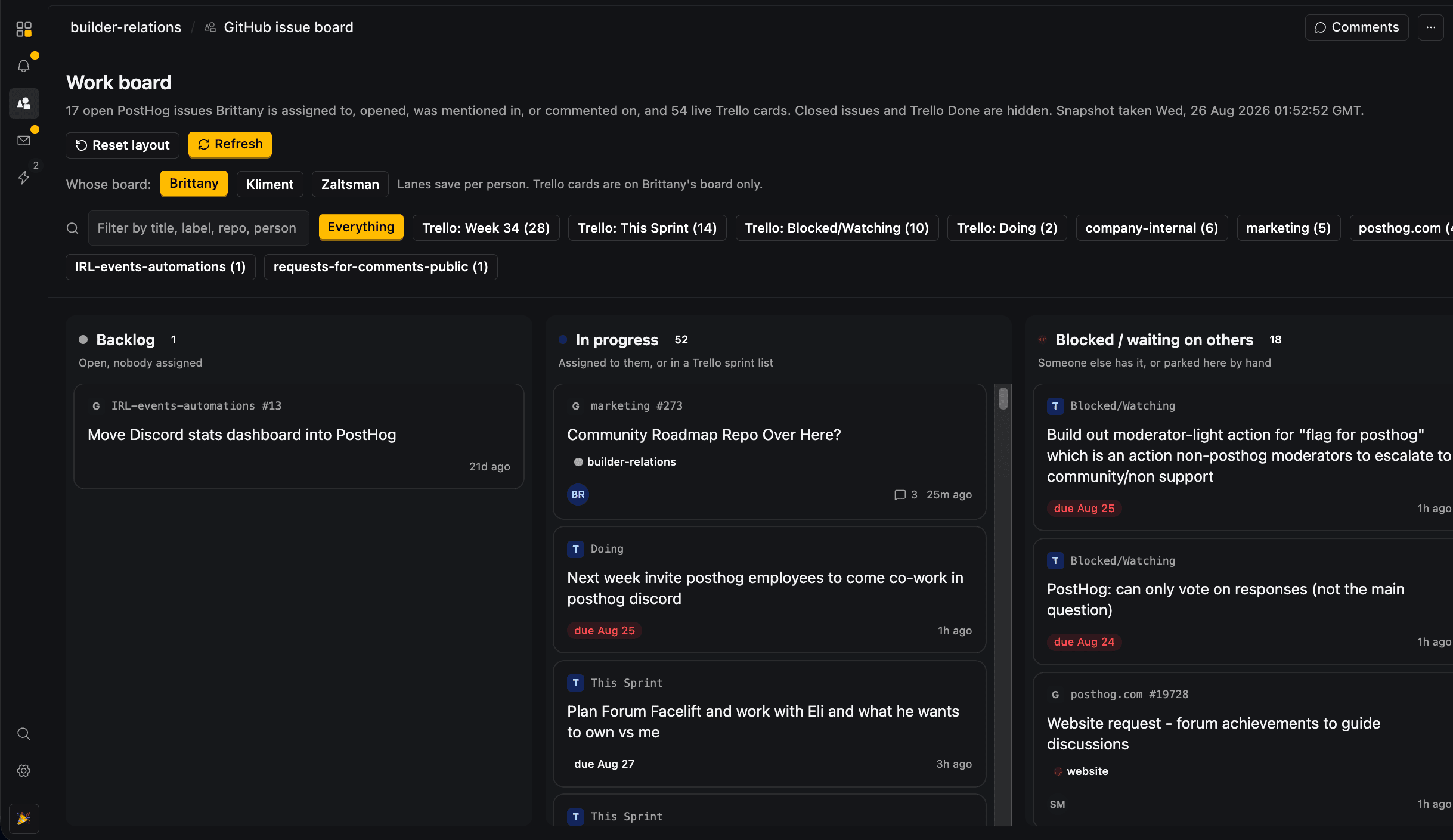
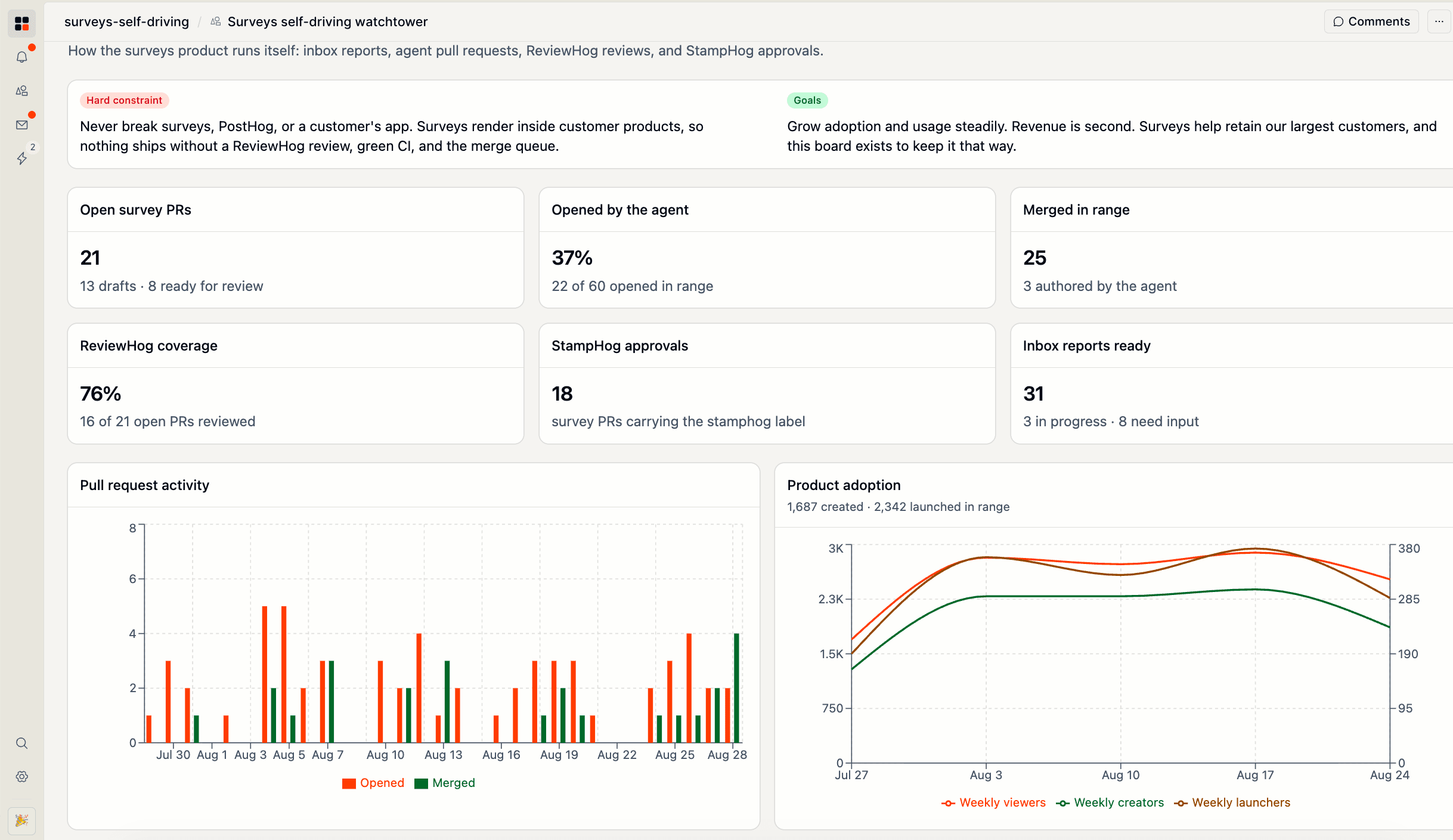
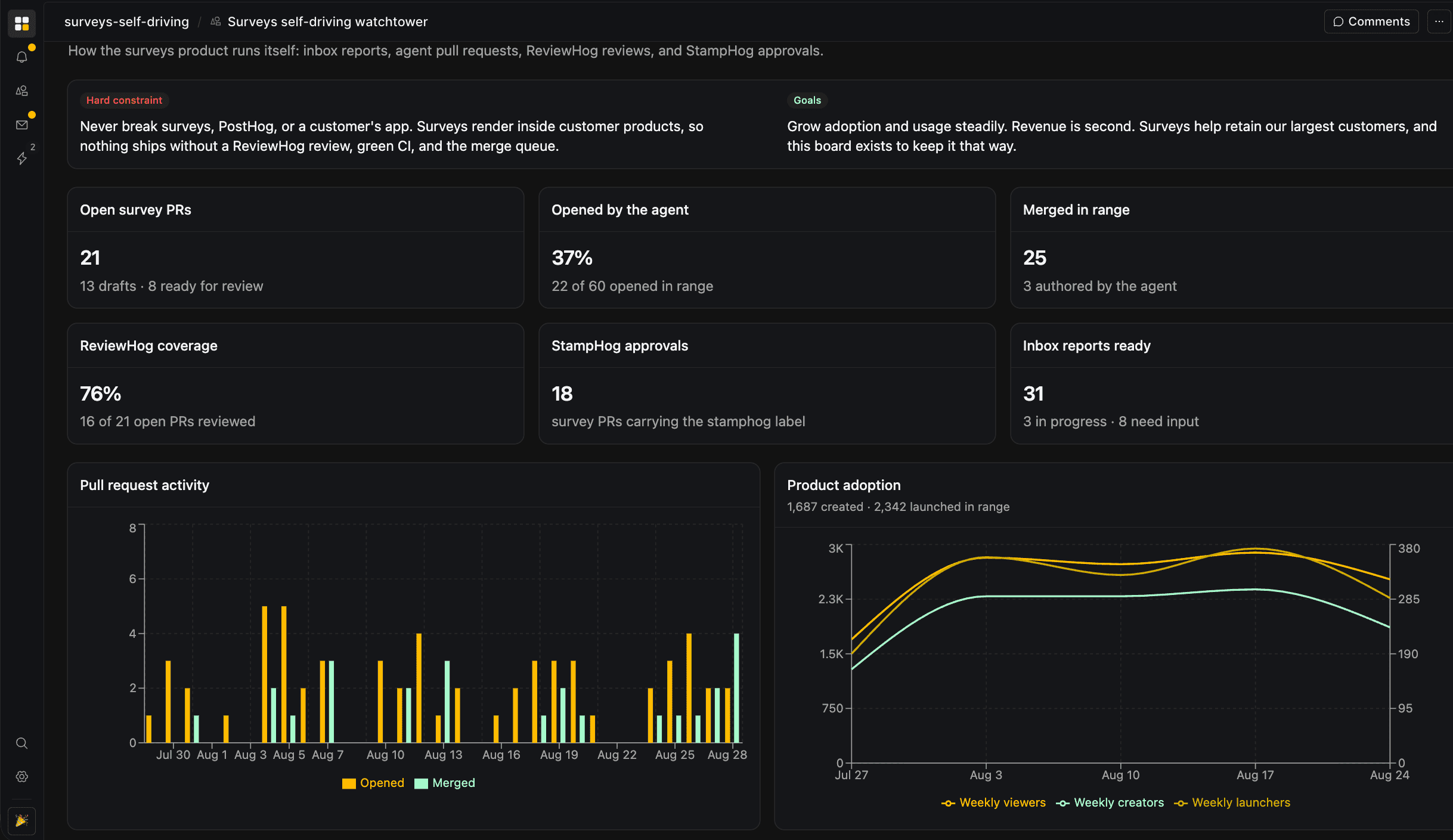
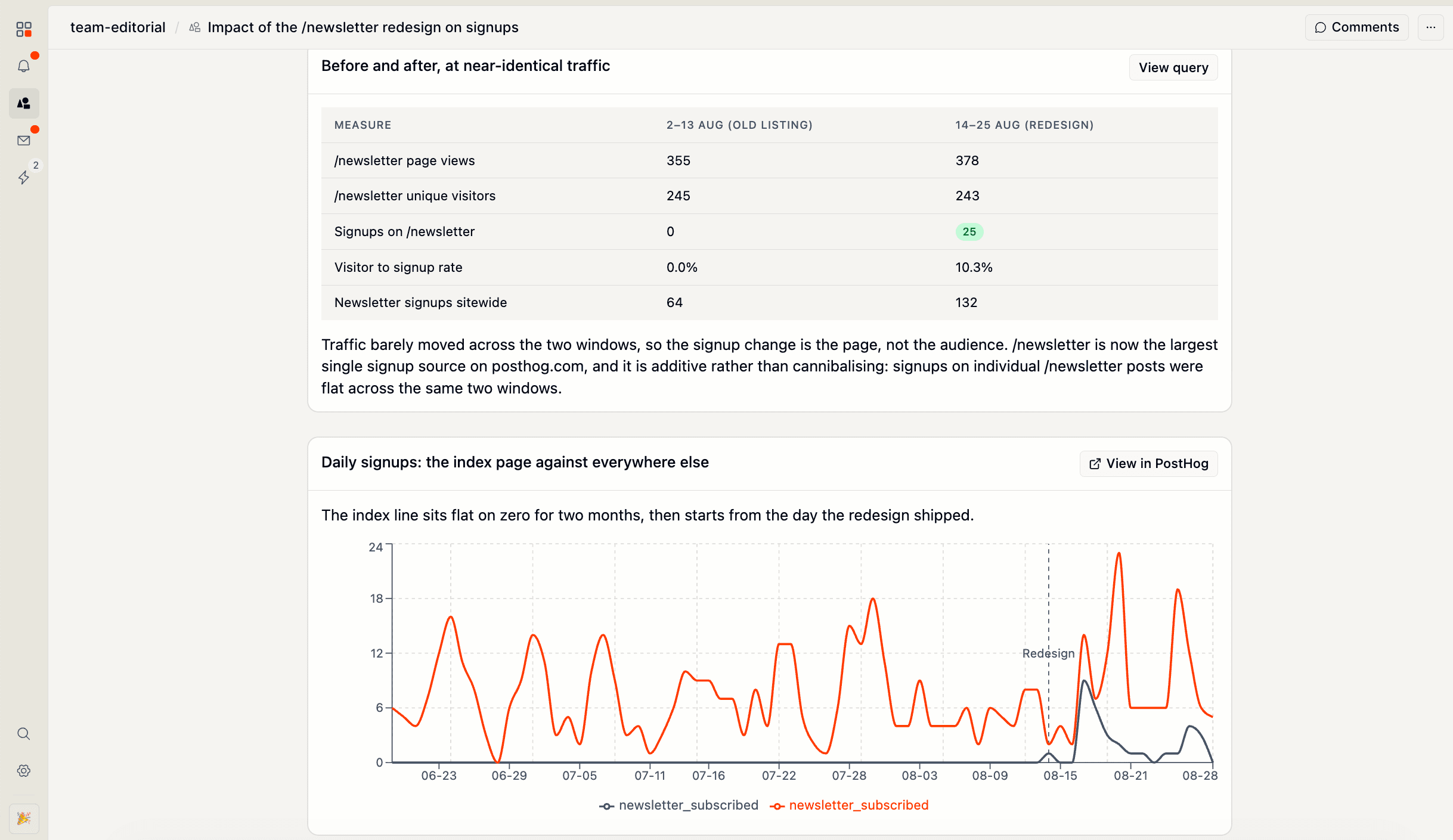
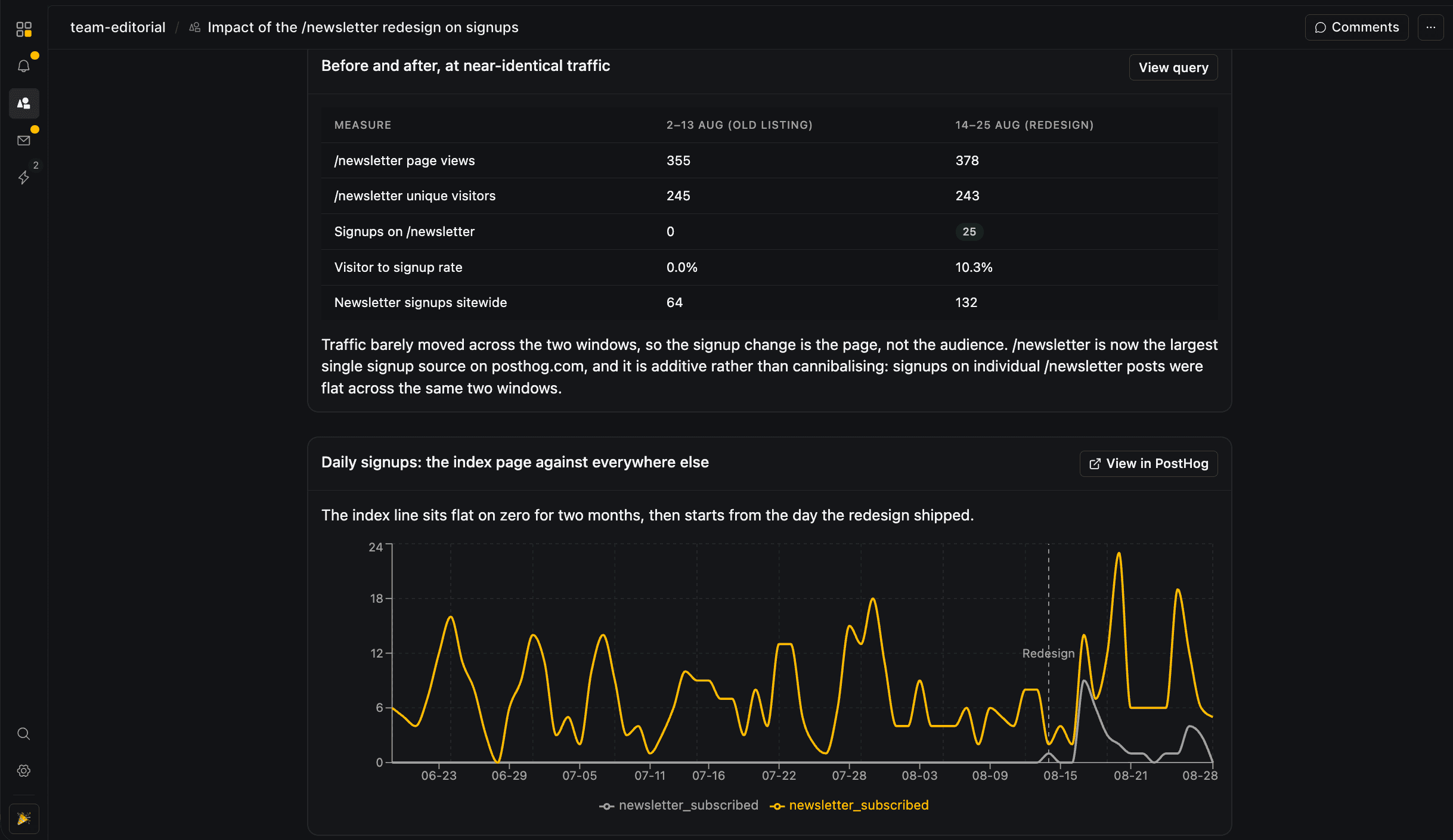
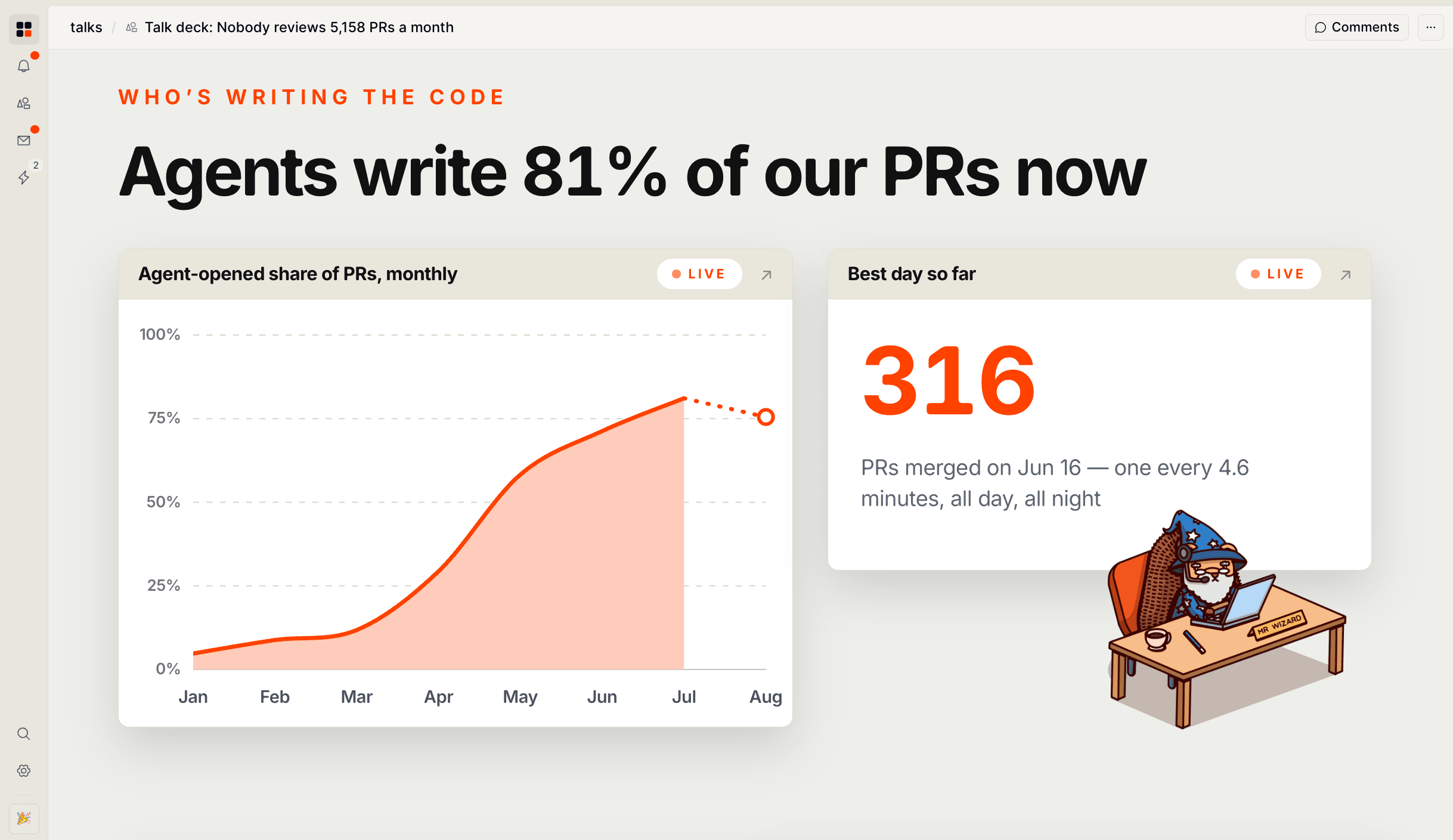
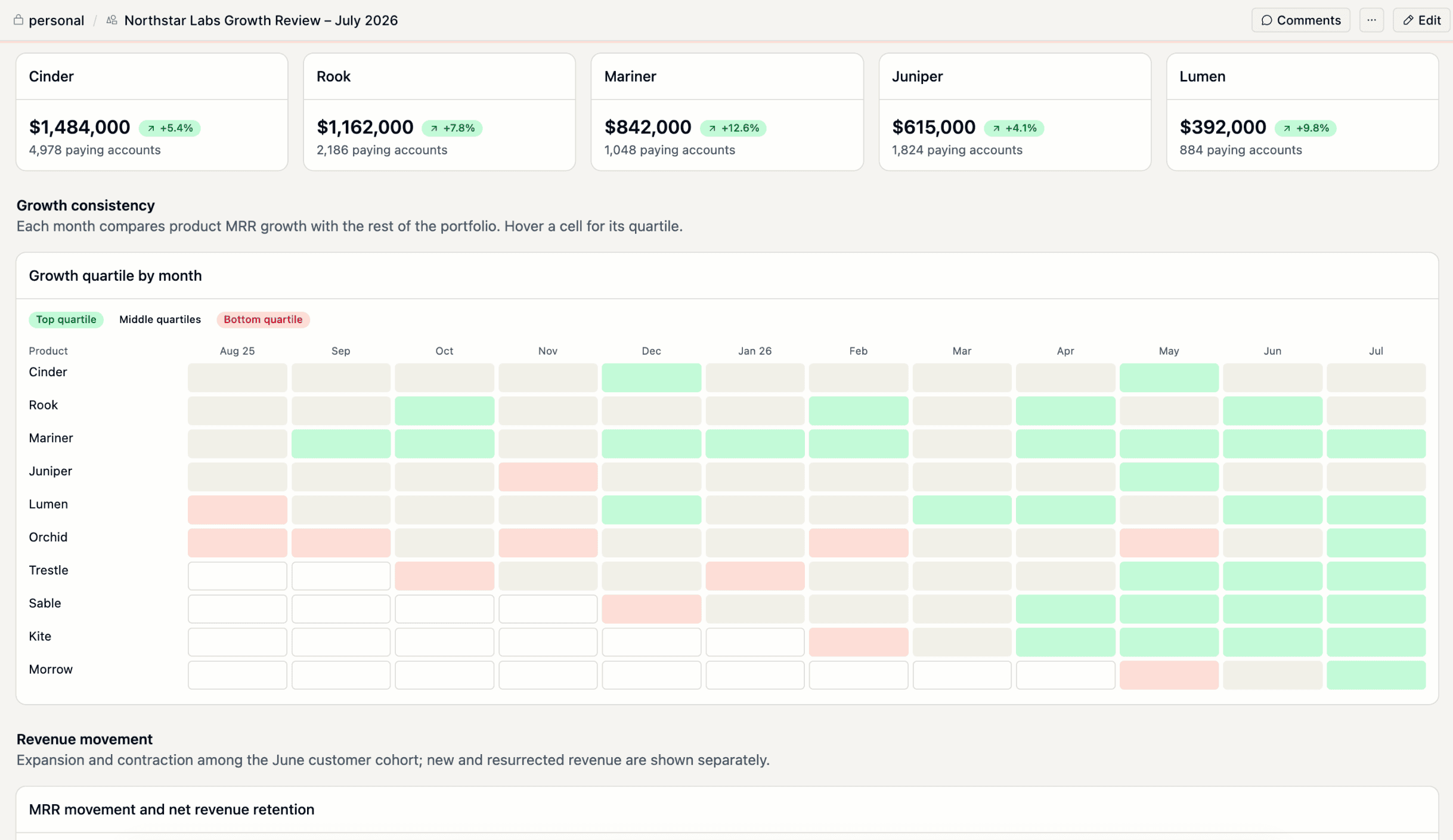
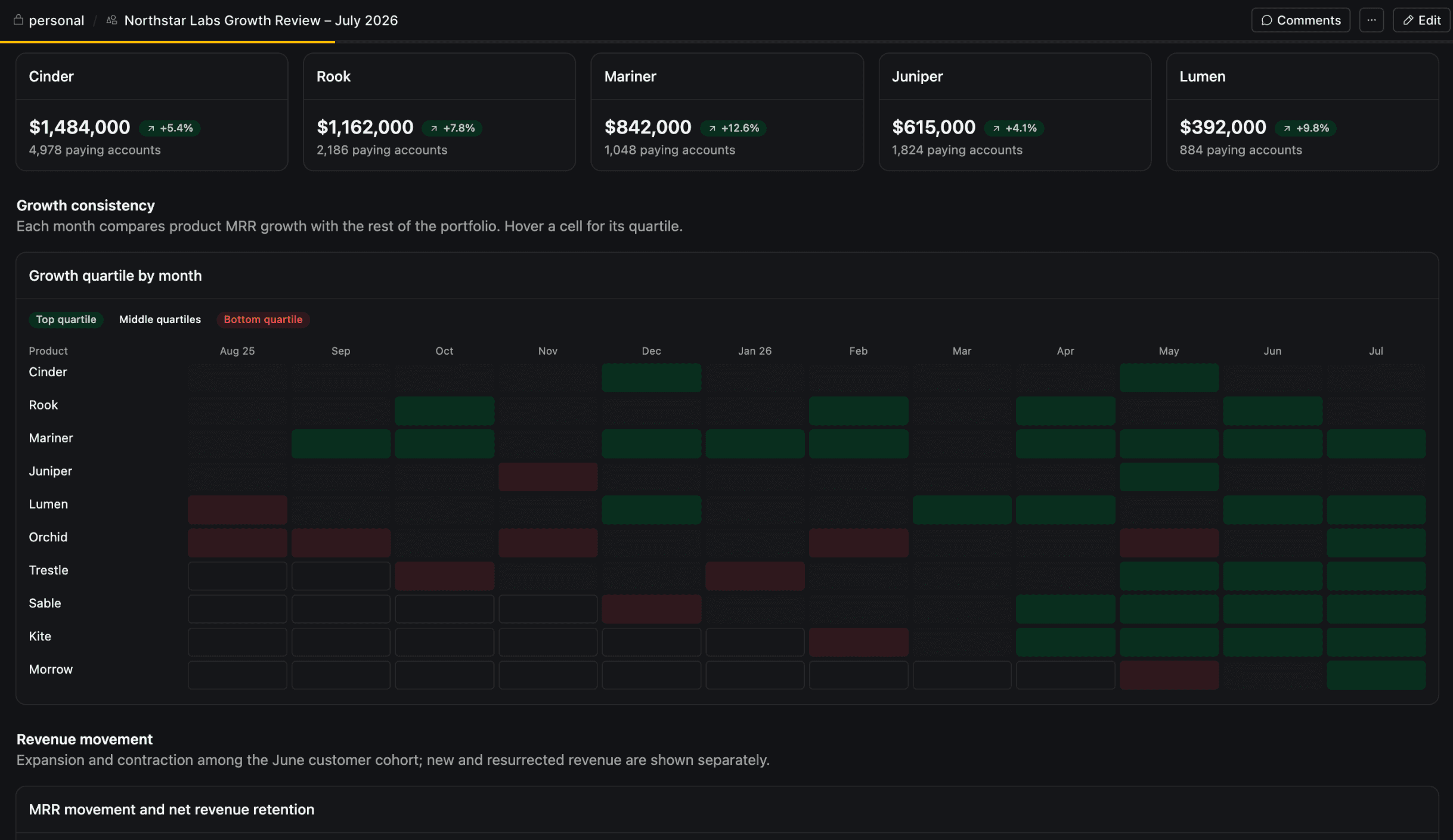
A canvas can be a data board, a document, a deck, a form, or a small tool. The patterns below work well. Copy a prompt, then change the details for your product.
Release health
Show how a release performs across adoption, quality, and support.
Customer lookup
Give support and success teams one place to understand an account.
Weekly product review
Turn a repeated reporting task into a shared view with current data.
Feature rollout
Connect rollout progress with behavior, quality, and feedback.
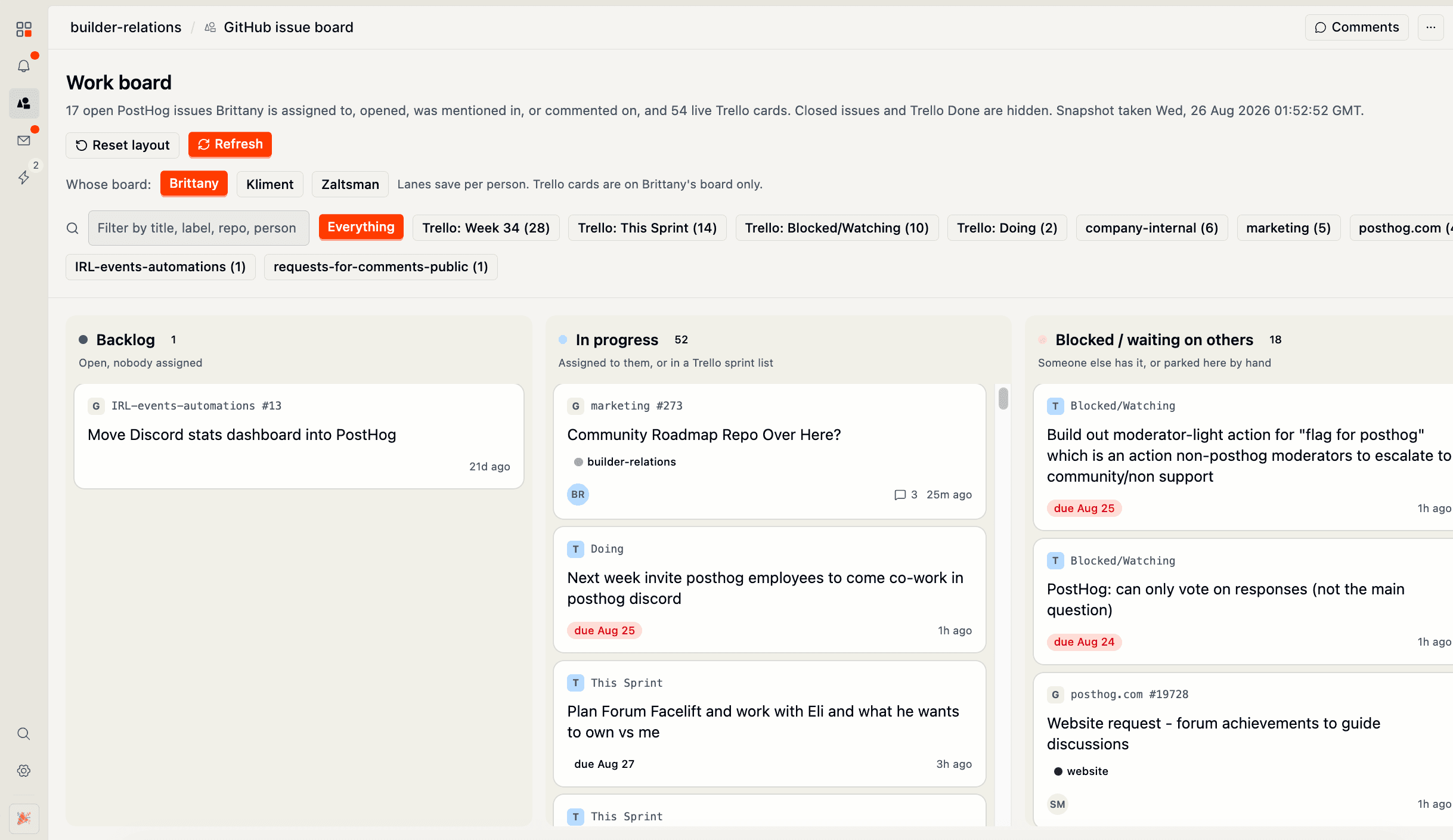
Team workflow
Combine data with actions when a team must act from one view.
Document or deck
Write prose, a newsletter, or a slide deck that keeps its numbers current.
Improve a canvas
Select Edit on a canvas to open the chat panel and prompt changes from the original session. You can also edit a canvas from any other agent chat. Refer to the canvas by name or link. Teammates in a shared space can comment on part of a canvas. Double click an element on the canvas, then select Add comment. The comment stays in the canvas thread, where you can use it to prompt the agent.
Each publish creates a version. Open an earlier version from the version list, and select Revert to this version when a revision does not work.
Share a canvas
A canvas belongs to a space, so teammates find it beside the sessions and the context that produced it. Everyone with access to the space and its PostHog project can open the canvas, comment on it, and ask for changes.
Select Copy link to get an HTTPS link. The link opens the canvas in PostHog Desktop. A canvas in your personal space stays private, so build it in a shared space when the team must use it.
Data and actions
Canvases use the PostHog project selected in Desktop. They can query the same project data available to the agent, including saved insights and supported PostHog products.
Each canvas declares the data and the actions that it needs, and PostHog limits the canvas to that list. Review the request when an agent builds or updates a canvas, especially when the canvas can capture events or change data.
See PostHog integration for project selection and data access. See Spaces for shared context and collaboration.